How to Fix the “Site Map Couldn’t Fetch” Error in Google Search Console

If you’ve submitted a sitemap to Google Search Console and received the frustrating message “Couldn’t Fetch”, you’re not alone.
This is one of the most common sitemap related issues website owners encounter. The problem can appear even when your website is online, your sitemap exists, and everything seems to be working normally.
The confusing part is that Google rarely tells you exactly what went wrong.
In some cases, the sitemap contains errors. In other situations, Google simply hasn’t processed the sitemap yet. Sometimes the issue is caused by caching, incorrect URL variations, redirects, firewall rules, or even how the sitemap is generated.
After troubleshooting this issue on several websites, one particular fix consistently stands out: submitting the sitemap using the URL parameter ?sitemap=1.
In this guide, we’ll walk through every known cause and solution so you can get your sitemap recognized and processed correctly.
What Does “Couldn’t Fetch” Mean in Google Search Console?
The “Couldn’t Fetch” status appears when Google Search Console is unable to successfully retrieve and process the sitemap URL you submitted.
This doesn’t always mean your sitemap is broken.
Google may display this error when:
- The sitemap URL is inaccessible.
- The sitemap contains formatting issues.
- The sitemap is being cached incorrectly.
- Google encounters redirects it doesn’t expect.
- The wrong property version was added to Search Console.
- Security systems block Google’s crawler.
- Google has not yet attempted to process the sitemap.
Because Google doesn’t provide a detailed explanation, troubleshooting requires checking several possible causes.
The Fix That Worked for Us: Submit ?sitemap=1 Instead
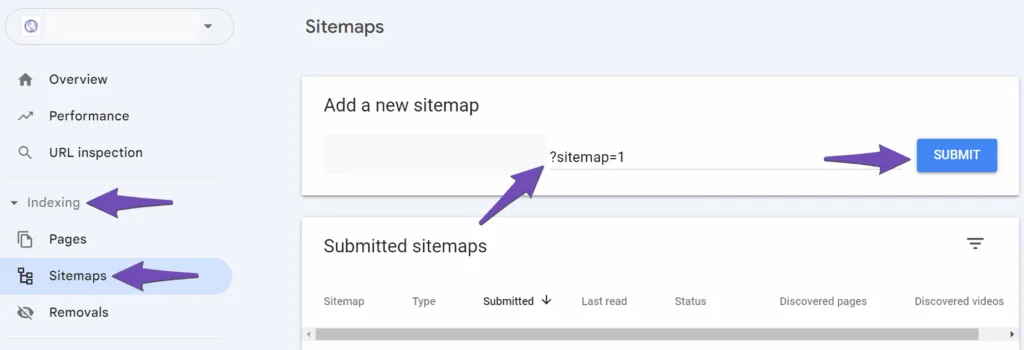
One of the simplest and most effective fixes is changing the sitemap URL you submit.
Instead of using:
https://yourdomain.com/sitemap.xml
or
https://yourdomain.com/sitemap_index.xml
Try submitting:
https://yourdomain.com/?sitemap=1
Many WordPress SEO plugins generate sitemaps dynamically. In some situations, Google encounters issues fetching the standard sitemap URL but has no trouble processing the parameter-based sitemap URL.
How to Submit It
- Open Google Search Console.
- Select your property.
- Navigate to Indexing → Sitemaps.
- Remove the problematic sitemap if necessary.
- Submit:
https://yourdomain.com/?sitemap=1
- Wait for Google to process the new sitemap.
This simple adjustment has resolved the issue for many website owners, including several WordPress sites running modern SEO plugins.
Verify That the Sitemap Opens Correctly
Before blaming Google, make sure the sitemap is actually accessible.
Open your sitemap URL in an incognito browser window.
A valid sitemap should load immediately and display XML content.
You should not see:
- 404 errors
- 403 forbidden errors
- Login screens
- Redirect loops
- Server errors
- Blank pages
If the sitemap doesn’t load properly in your browser, Google won’t be able to fetch it either.
Validate the Sitemap Structure
A sitemap must follow Google’s XML sitemap standards.
Even a small formatting problem can prevent successful processing.
Use an XML sitemap validator and verify:
- The XML structure is valid.
- URLs are properly formatted.
- Special characters are escaped correctly.
- The sitemap is not corrupted.
A valid sitemap should contain URLs formatted similarly to:
<url>
<loc>https://yourdomain.com/page-url/</loc>
</url>
Any XML parsing errors should be corrected before resubmitting.
Check Your Sitemap URL Version
Many websites can be accessed using multiple URL versions:
http://domain.com
http://www.domain.com
https://domain.com
https://www.domain.com
Google Search Console properties must match the actual version of your website.
For example, if your website uses:
https://veerhost.com
but you submitted:
http://www.veerhost.com/sitemap.xml
Google may fail to fetch the sitemap correctly.
Always verify the exact URL used in your CMS settings and hosting configuration.
Clear Website and Sitemap Cache
Caching plugins occasionally serve outdated sitemap data.
When this happens, Google may receive an invalid or stale version of your sitemap.
Clear all layers of caching, including:
- WordPress cache plugins
- Server cache
- LiteSpeed cache
- CDN cache
- Cloudflare cache
After clearing cache:
- Open the sitemap again.
- Confirm the latest URLs appear.
- Resubmit the sitemap in Search Console.
Exclude Sitemap URLs From Caching
This is one of the most overlooked causes.
Your sitemap should never be cached aggressively.
If you’re using:
- Cloudflare
- LiteSpeed Cache
- WP Rocket
- FlyingPress
- NitroPack
Make sure the following URLs are excluded:
/sitemap.xml
/sitemap_index.xml
/?sitemap=1
Google should always receive a fresh sitemap response.
Ensure Search Engines Can Index Your Content
A sitemap containing no indexable URLs can cause unexpected issues.
Review your SEO plugin settings and make sure important content is not marked:
noindex
Check:
- Posts
- Pages
- Categories
- Products
- Custom post types
If everything is excluded from indexing, your sitemap may appear empty to Google.
Verify Robots.txt Isn’t Blocking the Sitemap
Your robots.txt file should allow access to your sitemap.
A recommended configuration looks like:
User-agent: *
Allow: /

Sitemap: https://yourdomain.com/?sitemap=1
You can check your robots.txt by visiting:
https://yourdomain.com/robots.txt
If the sitemap location is missing, adding it can help Google discover the sitemap faster.
Check for Security Rules and Firewall Blocks
Some hosting environments block automated requests.
Security systems such as:
- ModSecurity
- Imunify360
- Cloudflare WAF
- Custom firewall rules
can mistakenly block Googlebot.
Review server logs for:
- 403 responses
- Rate limiting
- Firewall challenges
- Bot protection triggers
If Googlebot is being blocked, whitelist it.
Confirm the Sitemap Returns HTTP 200
Google expects a successful response code.
Your sitemap should return:
HTTP 200 OK
Not:
301 Redirect
302 Redirect
403 Forbidden
404 Not Found
500 Internal Server Error
You can verify this using online HTTP header checkers or browser developer tools.
Large Sitemap? Split It Into Multiple Files
Very large websites sometimes generate oversized sitemaps.
Google recommends:
- Maximum 50,000 URLs per sitemap.
- Maximum 50 MB uncompressed.
If your sitemap exceeds these limits, split it into multiple sitemap files and use a sitemap index.
What If Everything Looks Correct?
Sometimes the sitemap is perfectly valid and Google still shows:
Couldn’t Fetch
This can happen because Search Console has not yet refreshed its data.
Google may continue displaying the status even after the issue has already been resolved.
In these situations:
- Keep the sitemap accessible.
- Resubmit it.
- Wait several days.
- Monitor Search Console.
Many website owners see the error disappear automatically after Google reprocesses the sitemap.
Frequently Asked Questions
Why does Google say “Couldn’t Fetch” when the sitemap opens normally?
Google Search Console occasionally reports temporary fetch issues even when the sitemap is accessible. This can happen due to processing delays, redirects, caching, or temporary crawler issues.
Does a sitemap need to end with sitemap.xml?
No. Google supports different sitemap formats and URLs. Many websites successfully use:
?sitemap=1
or
sitemap_index.xml
instead of a traditional sitemap.xml file.
How long does Google take to process a sitemap?
Processing can take anywhere from a few minutes to several days depending on the website and crawl frequency.
Can Google index my website without a sitemap?
Yes. Google can discover pages through links. However, a sitemap helps Google find content more efficiently and is strongly recommended.
Should I delete and resubmit my sitemap?
If the sitemap appears stuck in a “Couldn’t Fetch” state, deleting and resubmitting it can help trigger a fresh crawl attempt.
Final Thoughts
The “Site Map Couldn’t Fetch” error can be frustrating because Google rarely explains the exact cause. Fortunately, most cases can be resolved by checking sitemap accessibility, clearing caches, validating XML structure, and ensuring the correct URL is submitted.
One of the most effective fixes we’ve seen is simply submitting:
https://yourdomain.com/?sitemap=1
instead of the traditional sitemap URL.
If your sitemap loads correctly in a browser, returns a 200 status code, isn’t blocked by security tools, and has been submitted using the correct URL variation, there’s a good chance Google will eventually process it successfully.
When in doubt, keep the sitemap accessible, monitor Search Console, and give Google’s systems some time to refresh.